macOS
Apple silicon (M1 or later) · macOS 11.0+
AvailableYour system
DMG · 81.7 MBVersion 0.2.96
Ask Tug anything. Tug picks a free model that fits your computer, gets it ready and answers on your computer. Switch models any time.
Tug is the desktop assistant from The Hugging Bay. The app is free to download; connected services may have their own costs.
Your download has started. It may take a minute. When it finishes:
Then come back to your model and choose Open in the app.
The app runs on a desktop computer. Share or copy this link to open it there.
Not yet. Use the website to find and download models.
On a Mac with Apple silicon? Download for Mac (Apple silicon)
Choose your system below. No model is bundled with the app.
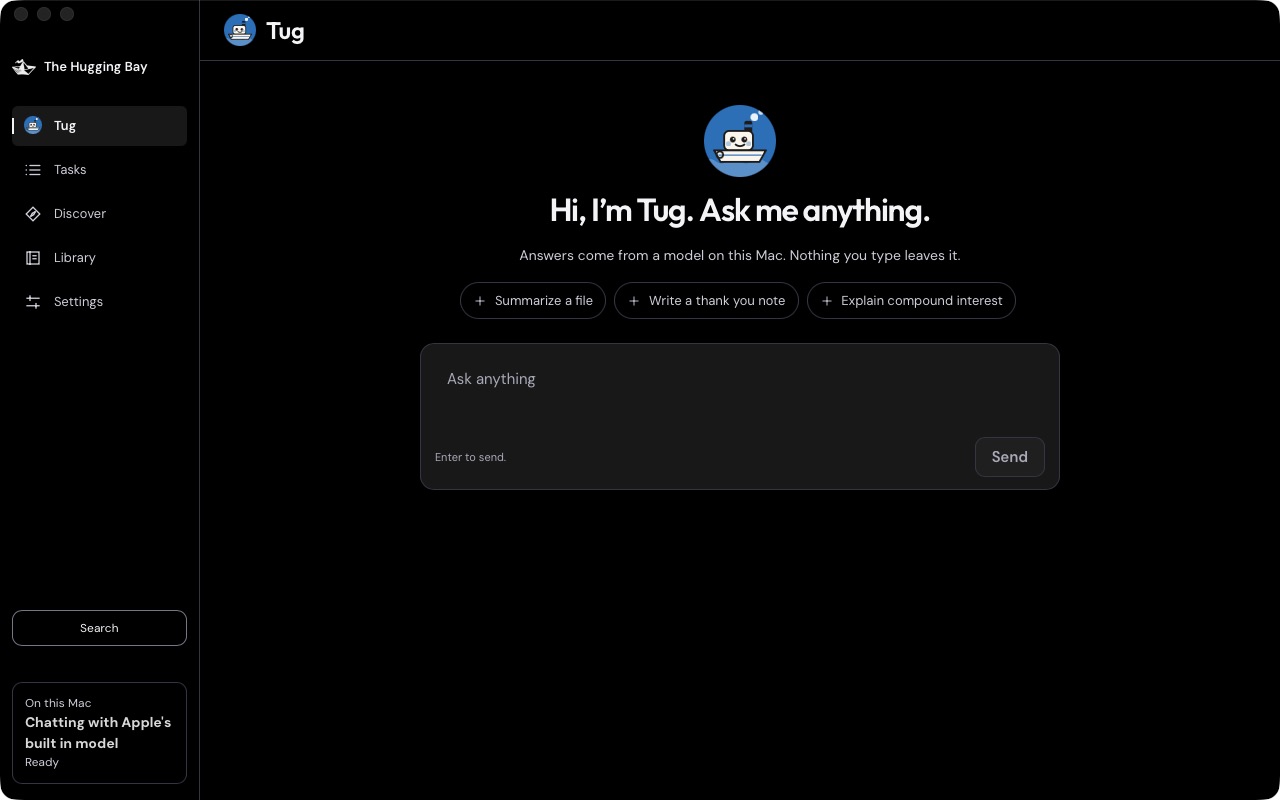
Type a question. No account and no setup screens.
Tug chooses a model your computer can run. You can pick another one any time.
Every model file is checked against its recorded fingerprint before it runs.
Local model chats stay on your computer. Searches, downloads and any AIs you connect use the internet.
Pick your system. When your browser identifies it, we highlight it below.
AppImage: make the downloaded file executable, then open it.
chmod +x ~/Downloads/The.Hugging.Bay_0.2.96_amd64.AppImage
~/Downloads/The.Hugging.Bay_0.2.96_amd64.AppImage
Or install the .deb package:
sudo apt install ~/Downloads/The.Hugging.Bay_0.2.96_amd64.debOpen the app and ask Tug a question.
Compare your file’s fingerprint with the published release. Expand your platform for its checksum and signature command.
TheHuggingBay-0.2.96-arm64.dmg
In Terminal. This checks the hash and Apple signature of the DMG.
Run this after saving the file in Downloads. Stop if either check fails.
The.Hugging.Bay_0.2.97_x64-setup.exe
Install minisign first. In PowerShell, this checks the hash and release signature.
Run this after saving the file in Downloads. Stop if either check fails.
The.Hugging.Bay_0.2.96_amd64.AppImage
Install minisign first. In a terminal, this checks the hash and release signature.
Run this after saving the file in Downloads. Stop if either check fails.
The.Hugging.Bay_0.2.96_amd64.deb
Install minisign first. In a terminal, this checks the hash and release signature.
Run this after saving the file in Downloads. Stop if either check fails.
Sizes are in MB, where 1 MB is 1,000,000 bytes. Some browsers and Windows File Explorer count 1 MB as 1,048,576 bytes and show a slightly smaller number.
How verification works →Search, download and verify models with hbay.